
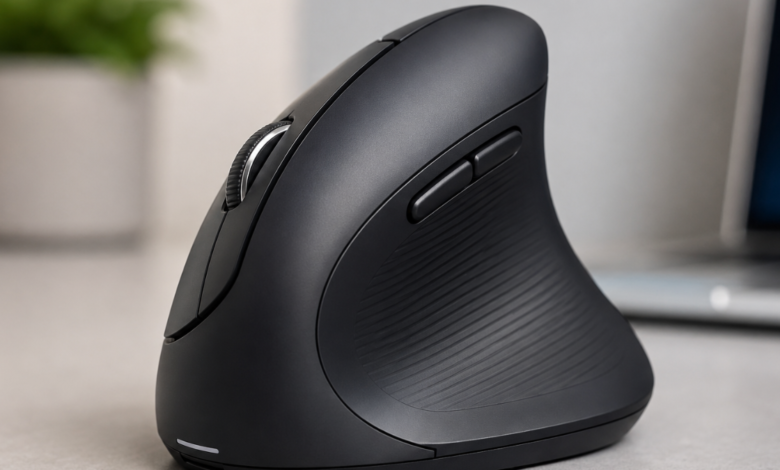
Ergonomic Mouse: A Complete Guide to Comfort, Productivity, and Better Computer Use

An ergonomic mouse is designed to make computer use more comfortable by supporting a more natural hand and wrist position. Unlike a traditional mouse, an ergonomic model focuses on the way your hand rests, how your fingers move, and how much effort is needed to control the pointer. For people who spend hours working, studying, designing, gaming, browsing, or creating content, choosing the right mouse can make everyday computer use feel much easier.
A mouse may look like a small part of a computer setup, but it can have a surprisingly large effect on comfort. When the hand stays in an awkward position for long periods, users may notice tiredness, stiffness, or general discomfort. An ergonomic mouse aims to reduce unnecessary strain by giving the hand better support and creating a more natural operating position.
The good news is that there are many types available today. Some have vertical designs, while others use a trackball, a sculpted body, or adjustable features. So, whether you’re a student, office worker, designer, programmer, gamer, or someone who simply spends a lot of time online, there’s likely an ergonomic mouse that can fit your needs.
What Is an Ergonomic Mouse?
An ergonomic mouse is a computer pointing device designed around human comfort and natural hand movement. Its shape, button placement, size, angle, and controls are created to help the user operate a computer without forcing the hand into an uncomfortable position.
A standard mouse usually encourages the palm to face downward toward the desk. While this position may feel completely normal for short sessions, some people find it uncomfortable during long periods of use. An ergonomic design may change the angle of the hand or provide additional palm and thumb support.
Some ergonomic mice look very different from ordinary models. Others look almost the same but have carefully shaped curves that provide better support. Therefore, you shouldn’t judge a mouse only by its appearance.
Common ergonomic designs include:
- Vertical mice
- Contoured mice
- Trackball mice
- Thumb-operated models
- Finger-operated trackballs
- Adjustable ergonomic mice
- Wireless ergonomic mice
- Ergonomic gaming mice
The best choice depends on your hand size, working style, desk setup, and personal comfort. In other words, there isn’t one perfect ergonomic mouse for everyone.
Why an Ergonomic Mouse Matters
Many computer users don’t think about their mouse until something feels uncomfortable. That’s understandable. We use a mouse almost automatically, moving it from one side of the screen to another while clicking, dragging, scrolling, and selecting items.
However, repeated movements can become tiring when performed for several hours every day. An ergonomic mouse can provide a more supportive way to interact with a computer.
The main purpose isn’t to make your mouse faster or more powerful. Instead, it’s about making everyday movements more comfortable and efficient.
An ergonomic design may help users:
- Keep the hand in a more natural position
- Reduce unnecessary wrist movement
- Support the palm and thumb
- Improve control during long work sessions
- Make repetitive computer tasks more comfortable
- Reduce the need for excessive gripping
- Create a more comfortable workstation
It’s important to keep expectations realistic, though. A mouse isn’t a magic solution for every type of hand or wrist discomfort. Your chair, desk height, keyboard, monitor position, posture, breaks, and overall working habits matter, too.
Still, choosing an ergonomic mouse can be a useful part of creating a more comfortable computer environment.
Key Features of an Ergonomic Mouse
Not every ergonomic mouse is built in the same way. Some models focus on changing the hand angle, while others focus on reducing movement or improving support.
When comparing models, consider the following features.
Hand Shape and Contoured Design
A contoured body can provide support for the palm and fingers. Instead of making your hand hover over a small flat surface, the mouse may follow the natural shape of your hand.
This can make the device feel more comfortable, especially during longer sessions.
Vertical Position
Vertical mice place the hand in a more upright position. Rather than resting the palm completely downward, the hand stays closer to a handshake-like posture.
This design can feel unusual at first. However, many users find that it takes pressure away from the traditional palm-down position.
Thumb Support
A thumb rest gives your thumb a dedicated place to sit. This can help keep the hand stable while you move the mouse.
Good thumb support can also make clicking and scrolling feel more controlled.
Adjustable Buttons
Some models include programmable buttons. These buttons can be assigned to common actions such as copy, paste, back, forward, or application shortcuts.
For professionals, this can save time because frequently used commands can be performed without moving the hand to the keyboard.
Adjustable Sensitivity
Mouse sensitivity, often associated with DPI settings, controls how far the pointer moves when you move the mouse.
Higher sensitivity can require less physical movement, while lower sensitivity may provide greater control for detailed tasks. A useful ergonomic mouse often offers adjustable sensitivity so users can choose what feels right.
Wireless Connectivity
Wireless designs reduce cable clutter and give users greater freedom to position the mouse.
Modern wireless mice may connect through Bluetooth or a small USB receiver. However, battery life and connection reliability should be considered before buying.
Rechargeable Battery
A rechargeable model can be convenient for daily use. Instead of replacing batteries regularly, you simply recharge the mouse when needed.
For people who work long hours, battery life is worth checking before making a purchase.
Types of Ergonomic Mouse Designs
Different users need different shapes. That’s why the ergonomic mouse market includes several design styles.
| Type | Main Feature | Best For |
|---|---|---|
| Vertical mouse | More upright hand position | Office work and long sessions |
| Contoured mouse | Curved body and palm support | General computer use |
| Trackball mouse | Pointer controlled by a ball | Limited desk movement |
| Thumb trackball | Ball operated by thumb | Users who prefer stationary devices |
| Finger trackball | Ball operated by fingers | Detailed pointer control |
| Adjustable mouse | Shape or angle can change | Users with specific comfort needs |
| Ergonomic gaming mouse | Comfort combined with gaming controls | Gamers and enthusiasts |
Vertical Ergonomic Mouse
A vertical model is one of the most recognizable ergonomic designs. It changes the angle of the hand instead of keeping the palm completely downward.
This can take some getting used to. At first, the mouse may feel strange because your brain has learned the movements of a traditional mouse. Give yourself time before deciding whether the design works for you.
Trackball Ergonomic Mouse
A trackball model stays mostly in one place. Instead of moving the entire mouse around the desk, you control a ball with your thumb or fingers.
This can be useful when desk space is limited. It may also reduce the need for repeated large arm movements.
Contoured Ergonomic Mouse
A contoured mouse generally looks more familiar. It uses curves, palm support, finger grooves, or thumb rests to improve comfort without radically changing the way you use a mouse.
For beginners, this can be an appealing option because the learning curve is usually smaller.
How to Choose the Right Ergonomic Mouse
Buying an ergonomic mouse isn’t simply about choosing the model with the most features. The shape needs to match your hand and your daily work.
Consider Your Hand Size
Mouse dimensions matter. A device that is too small may cause your fingers to curl more than necessary. A model that’s too large may make reaching the buttons uncomfortable.
Look for measurements provided by the manufacturer and compare them with your hand size whenever possible.
Think About Your Grip
People commonly use different mouse grips.
These include:
- Palm grip
- Claw grip
- Fingertip grip
A palm grip involves resting much of the hand on the mouse. A claw grip keeps some fingers raised, while a fingertip grip uses mainly the fingertips.
Some ergonomic mice are designed specifically for certain grip styles, so it’s worth checking before buying.
Look at Your Daily Tasks
Your computer activities should influence your choice.
For example:
- Writers may prefer comfort and smooth scrolling.
- Designers may value precision and customizable buttons.
- Programmers may appreciate shortcut buttons.
- Gamers may want speed, precision, and programmable controls.
- Office workers may prioritize palm support and wireless freedom.
- Students may want an affordable model with a simple design.
The best ergonomic mouse is the one that fits your real working habits.
Ergonomic Mouse vs Traditional Mouse
A traditional mouse can be perfectly suitable for many users. Ergonomic designs aren’t automatically better for every person.
The major difference is the design philosophy.
A traditional mouse usually uses a simple shape that works for a broad range of users. An ergonomic mouse is designed with greater attention to hand position, support, and movement.
| Feature | Traditional Mouse | Ergonomic Mouse |
|---|---|---|
| Shape | Usually simple | Often contoured |
| Hand position | Usually palm-down | May be angled or upright |
| Palm support | Basic | Often improved |
| Thumb support | Varies | Common on many models |
| Custom controls | Depends on model | Often available |
| Learning curve | Usually low | Can vary |
| Main focus | General use | Comfort and usability |
This doesn’t mean you need to replace your current mouse immediately. If your existing mouse feels comfortable and works well, there’s no reason to change it simply because another design is labeled ergonomic.
However, if you’re experiencing discomfort during long sessions, exploring an ergonomic mouse could be worthwhile.
Benefits of Using an Ergonomic Mouse
An ergonomic mouse can offer several practical benefits when its design suits the user.
Better Comfort During Long Sessions
Comfort is perhaps the biggest reason people consider ergonomic products. A well-designed mouse can provide better palm and thumb support, making extended computer use feel less tiring.
Natural Hand Position
Certain ergonomic models change the angle of the hand. This can make the operating position feel more natural for some users.
Reduced Unnecessary Movement
Trackball models, for example, don’t require the entire mouse to travel across the desk. This may be useful for people who prefer keeping their hand in one location.
Improved Productivity
Productivity isn’t only about speed. If you’re constantly adjusting your hand or taking your hand away from the mouse because it feels uncomfortable, your workflow can suffer.
An ergonomic mouse with comfortable controls and programmable buttons may help create a smoother workflow.
More Control
A good mouse should respond predictably to your movements. Adjustable sensitivity, precise tracking, and properly positioned buttons can make daily tasks easier.
How to Use an Ergonomic Mouse Correctly
Even the best mouse can’t provide its full benefits if it’s used with poor habits.
Start by placing the mouse close to your keyboard. You shouldn’t have to stretch your arm far away from your body to reach it.
Keep your shoulders relaxed and avoid lifting them toward your ears. Your elbow should remain reasonably close to your body rather than being pushed far outward.
Try not to grip the mouse tightly. A light, relaxed grip is generally more comfortable than squeezing the device.
Move the mouse smoothly and avoid making unnecessary rapid movements.
Also, take regular breaks. Stand up, change position, stretch gently, or simply look away from the screen for a while.
Remember, an ergonomic mouse works best as part of a complete ergonomic workstation.
Common Mistakes When Using an Ergonomic Mouse
Buying an ergonomic mouse doesn’t automatically create an ergonomic workstation. Several common mistakes can reduce its advantages.
Choosing Based Only on Appearance
A futuristic-looking mouse isn’t necessarily comfortable. Focus on shape, size, support, and control.
Buying the Wrong Size
A mouse that’s too large or too small can create unnecessary hand movement. Whenever possible, test the mouse before buying.
Holding It Too Tightly
Some users grip their mouse harder when concentrating. This can lead to unnecessary tension.
Keep your hand relaxed.
Ignoring Desk Height
Your mouse position is connected to the rest of your workstation. A desk that’s too high or too low can affect your shoulders and arms.
Expecting Instant Comfort
A vertical mouse or trackball can feel unusual during the first few days. Your movements may initially feel slower.
That’s normal. Give yourself time to learn the new design.
Forgetting to Take Breaks
Even a highly comfortable mouse doesn’t mean you should use a computer continuously without rest.
Breaks remain an important part of healthy computer habits.
Ergonomic Mouse for Office Workers
Office employees often spend a large portion of the day using computers. Email, spreadsheets, documents, presentations, meetings, and web applications can all involve repeated mouse movements.
For office use, comfort and reliability should be the top priorities.
A good office-oriented ergonomic mouse may include:
- A comfortable palm rest
- Quiet or smooth buttons
- Easy scrolling
- Wireless connectivity
- Long battery life
- Adjustable pointer sensitivity
- Programmable shortcut buttons
You don’t necessarily need an expensive model. A simple, well-shaped mouse can be more useful than a premium device with features you never use.
Ergonomic Mouse for Designers and Creators
Graphic designers, video editors, photographers, architects, and digital artists may spend many hours making precise movements.
For these users, tracking quality matters greatly. Pointer accuracy can affect everything from selecting a small object to adjusting a detailed design.
Programmable buttons may also improve productivity. Common commands can be assigned to buttons so that users don’t need to constantly switch between the mouse and keyboard.
Still, precision shouldn’t come at the cost of comfort. A creative professional may spend countless hours using the device, making the design of an ergonomic mouse especially important.
Ergonomic Mouse for Gaming
Gaming mice are often built around speed, accuracy, weight, and customization. However, comfort matters here, too.
Gamers may use a mouse for long sessions, sometimes making thousands of small movements. A comfortable shape can make the experience more enjoyable.
When choosing an ergonomic gaming mouse, look for:
- A shape that fits your grip
- Accurate tracking
- Adjustable sensitivity
- Reliable buttons
- Appropriate weight
- Comfortable side grips
- Useful programmable controls
Don’t choose a mouse only because it has a high sensitivity rating or flashy lighting. If it doesn’t fit your hand, those features won’t matter much.
Ergonomic Mouse and Productivity
Small improvements can add up over time. A mouse that’s comfortable, responsive, and easy to control can make everyday computer work feel more natural.
Programmable buttons can reduce repeated keyboard movements. Smooth scrolling can make long documents easier to navigate. Adjustable sensitivity can help users find a pointer speed that matches their workflow.
For people who spend hours working on spreadsheets, websites, documents, editing software, or online platforms, an ergonomic mouse can become an important part of their productivity setup.
It’s not about working faster every second. It’s about creating a setup that doesn’t get in the way.
How to Set Up Your Mouse for Better Comfort
Once you’ve selected an ergonomic mouse, take a few minutes to adjust your workstation.
Follow these simple steps:
- Place the mouse close to your keyboard.
- Keep your shoulders relaxed.
- Avoid reaching too far forward.
- Keep your wrist in a comfortable position.
- Use a light grip.
- Adjust pointer sensitivity to your preference.
- Keep your desk surface clean and smooth.
- Take regular breaks.
- Change your sitting position throughout the day.
Your monitor and keyboard position matter as well. A comfortable mouse cannot fix every problem caused by an unsuitable desk setup.
Is an Ergonomic Mouse Worth Buying?
For many users, yes.
An ergonomic mouse can be a smart investment if you spend significant time at a computer and want to improve comfort. It can also be useful if your current mouse feels awkward or requires excessive movement.
However, buying the most expensive model isn’t necessary.
Instead, consider:
- Your hand size
- Your grip style
- Your work type
- Mouse shape
- Button placement
- Tracking performance
- Connectivity
- Battery life
- Price
- Personal comfort
If possible, test several shapes before making a final decision. A mouse that feels perfect to one person may feel uncomfortable to another.
Frequently Asked Questions About Ergonomic Mouse
What is an ergonomic mouse used for?
An ergonomic mouse is used for normal computer tasks while placing greater emphasis on comfort, hand support, and natural movement. It can be used for office work, studying, gaming, designing, browsing, and many other computer activities.
Is an ergonomic mouse better than a normal mouse?
It depends on the user. Some people prefer traditional mice, while others find ergonomic designs more comfortable. The best choice is the one that fits your hand, work style, and personal preferences.
How long does it take to get used to an ergonomic mouse?
The adjustment period varies. A slightly contoured mouse may feel familiar immediately, while a vertical or trackball design can take longer to learn. Give yourself time to become comfortable with the new movement style.
Can an ergonomic mouse improve productivity?
It can. Comfortable shapes, customizable buttons, accurate tracking, and efficient scrolling may help create a smoother workflow, especially during long computer sessions.
Are vertical mice difficult to use?
They can feel unusual at first because the hand position is different. However, many users adapt with practice. Whether the design feels comfortable depends on personal preference and hand shape.
Should an ergonomic mouse be wireless?
Not necessarily. Wireless models offer a cleaner desk and greater freedom, while wired models don’t require battery charging and can provide a simple connection. Both can be excellent choices.
Is an ergonomic mouse good for gaming?
Some ergonomic mice are excellent for gaming. Gamers should consider shape, grip style, weight, sensor performance, buttons, and customization when choosing a model.
Final Thoughts on Choosing an Ergonomic Mouse
A computer mouse may be a small device, but it plays a major role in everyday digital work. From answering emails and writing documents to editing images and playing games, the mouse can be used hundreds or thousands of times during a typical workday.
That’s why comfort shouldn’t be treated as an afterthought.
An ergonomic mouse can provide improved hand support, a more natural operating position, better control, and useful features for different types of users. However, the right choice depends on your hand size, grip, daily tasks, preferred design, and workstation.
Don’t feel pressured to buy the most expensive option. Instead, focus on the features that genuinely improve your experience. A comfortable shape, sensible button placement, reliable tracking, and a relaxed grip may matter much more than unnecessary extras.
Most importantly, remember that a mouse is only one part of your computer setup. Good posture, proper desk positioning, regular breaks, and comfortable keyboard use should all work together.
With a thoughtful approach, choosing an ergonomic mouse can be a simple but valuable step toward a more comfortable, productive, and enjoyable computer experience.
You may also read
Movies Near Me: A Complete Guide to Finding the Best Movies and Cinemas Nearby
